Import your data from Splitwise to BananaSplit
Move your Splitwise history into BananaSplit, choose where it goes, and match every person without starting over.
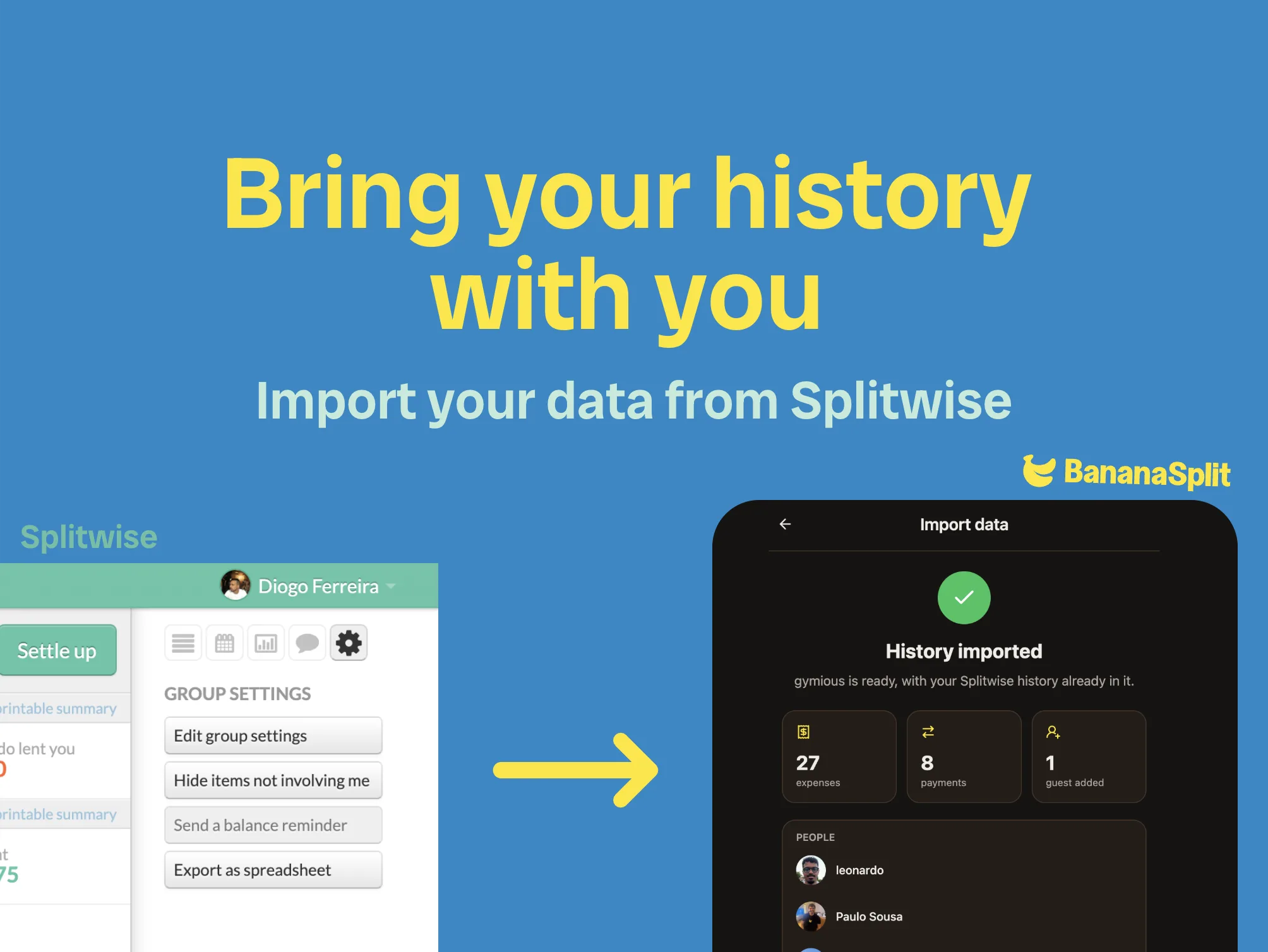
If your group history still lives in Splitwise, you can now bring it with you.
Import from Splitwise is built for the real switching moment: the trip, house, couple, or friend group already has history somewhere else, but you want the next expense to live in BananaSplit.
Download the CSV from Splitwise
Start in Splitwise. Open the group history you want to bring over and export it as a CSV file.
On Splitwise Web:
- Open the group in Splitwise and click the settings icon.
- Choose "Export as spreadsheet" and pick CSV.
- Save the file Splitwise emails you, then choose it in BananaSplit.
On Splitwise app:
- Open the group in the Splitwise app.
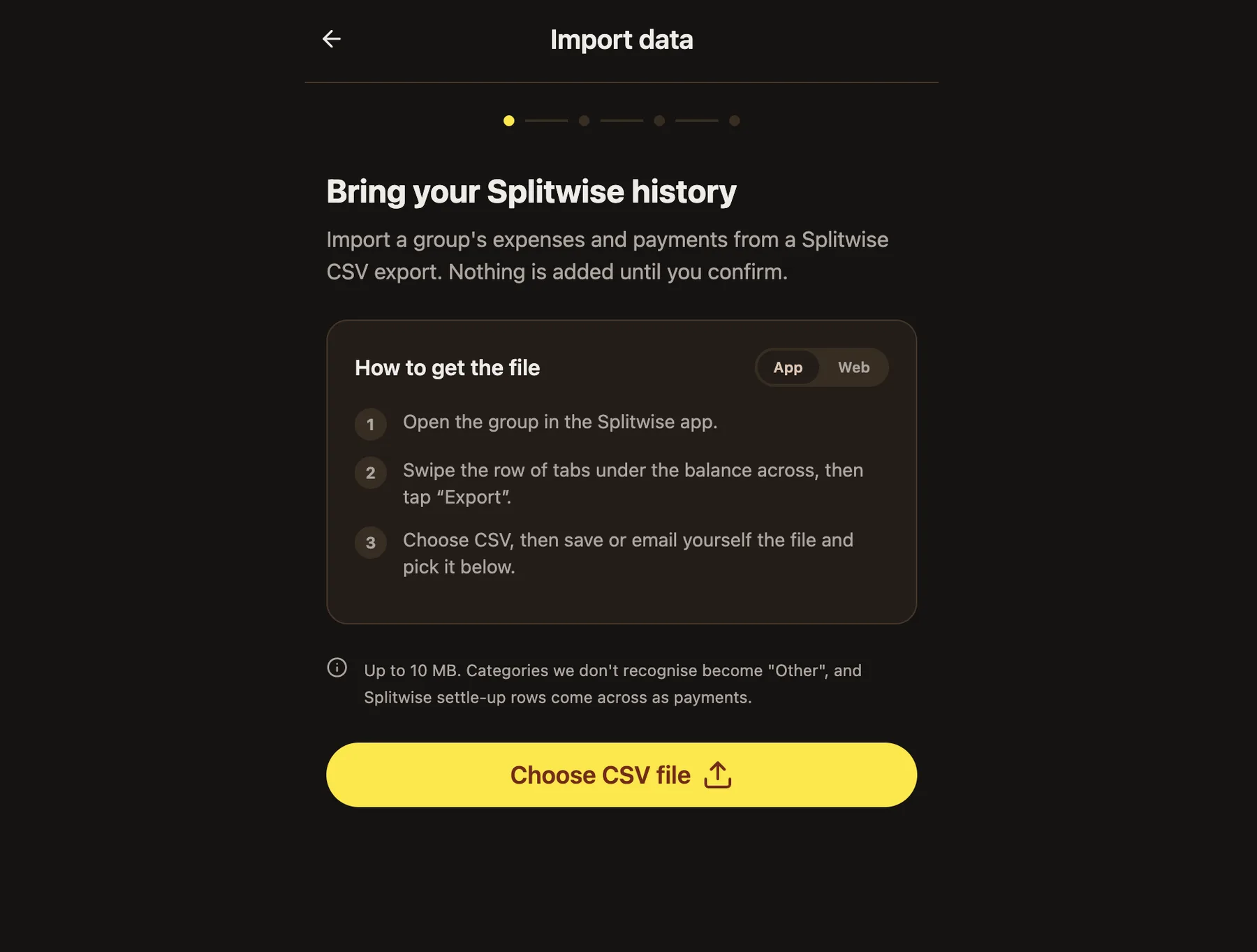
- Swipe the row of tabs under the balance across, then tap "Export".
- Choose CSV, then save or email yourself the file and choose it in BananaSplit.
Open Import from Splitwise
In BananaSplit, go to Settings and tap Import from Splitwise. The import screen explains what the CSV does before anything is added.
Choose your CSV file
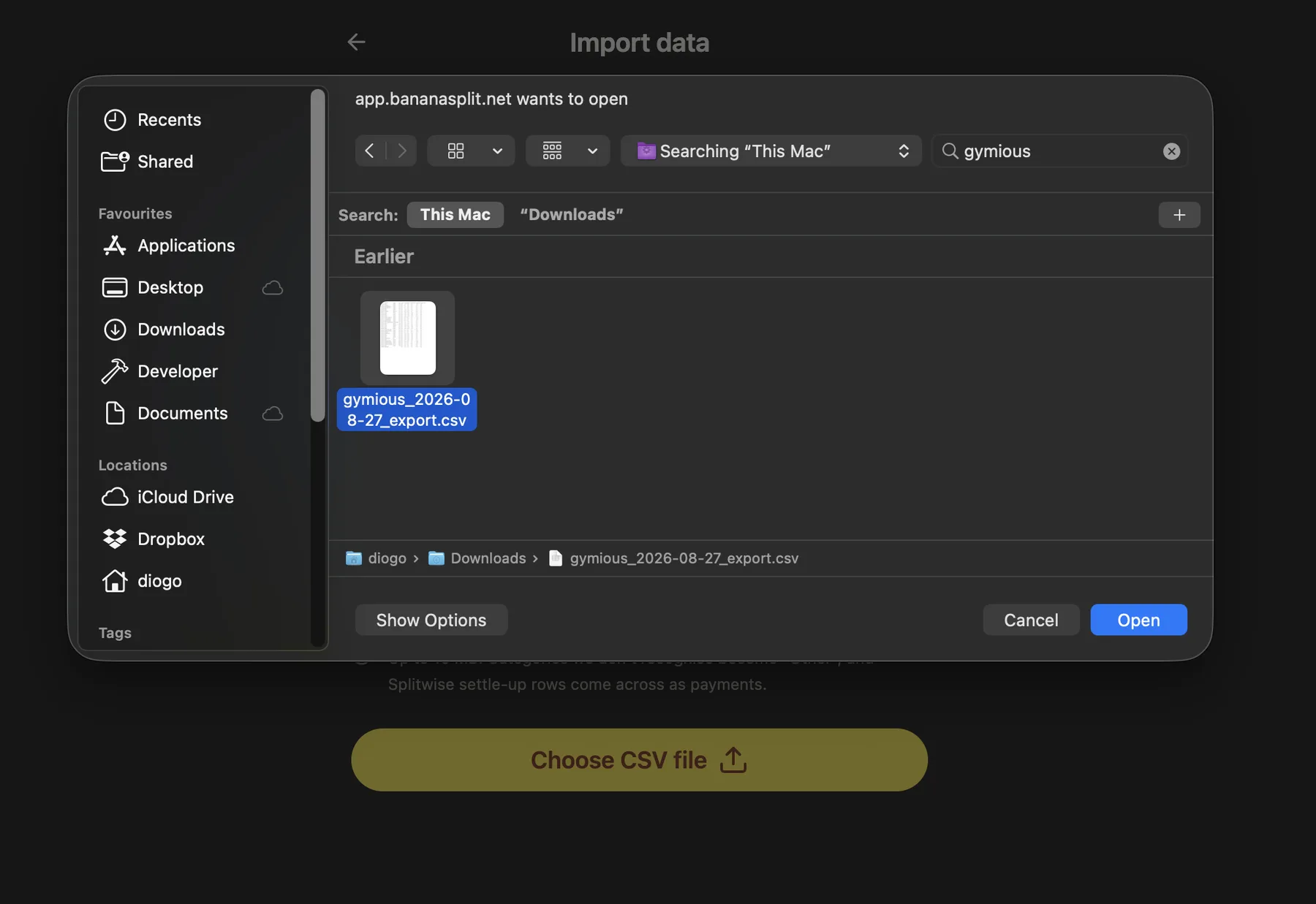
Pick the CSV file you downloaded from Splitwise. BananaSplit reads the file first, so nothing is imported until you confirm later.
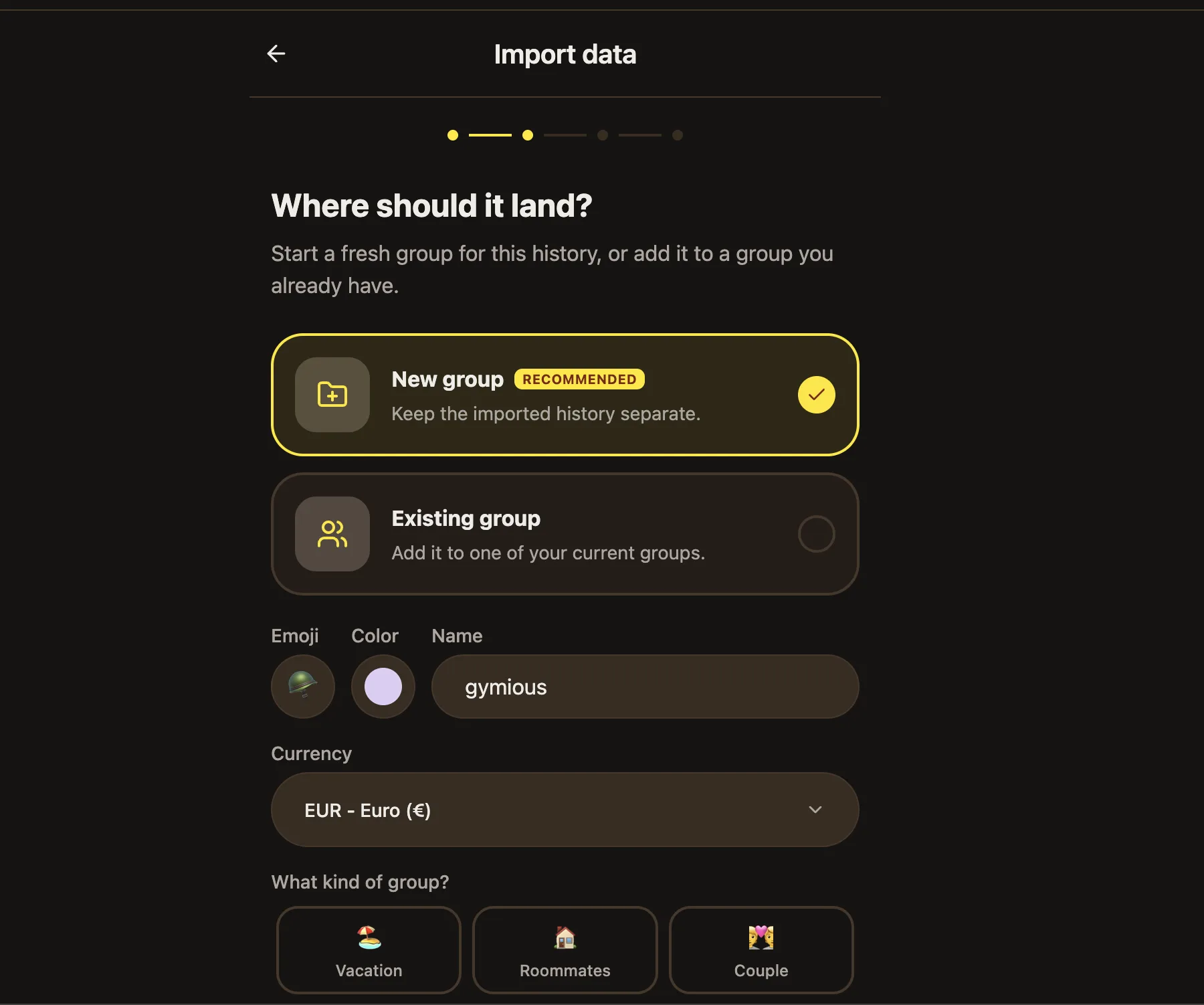
Choose where it lands
Create a new group from the Splitwise history, or add the imported activity to a BananaSplit group you already have. A new group is recommended when you want to keep that old history separate.
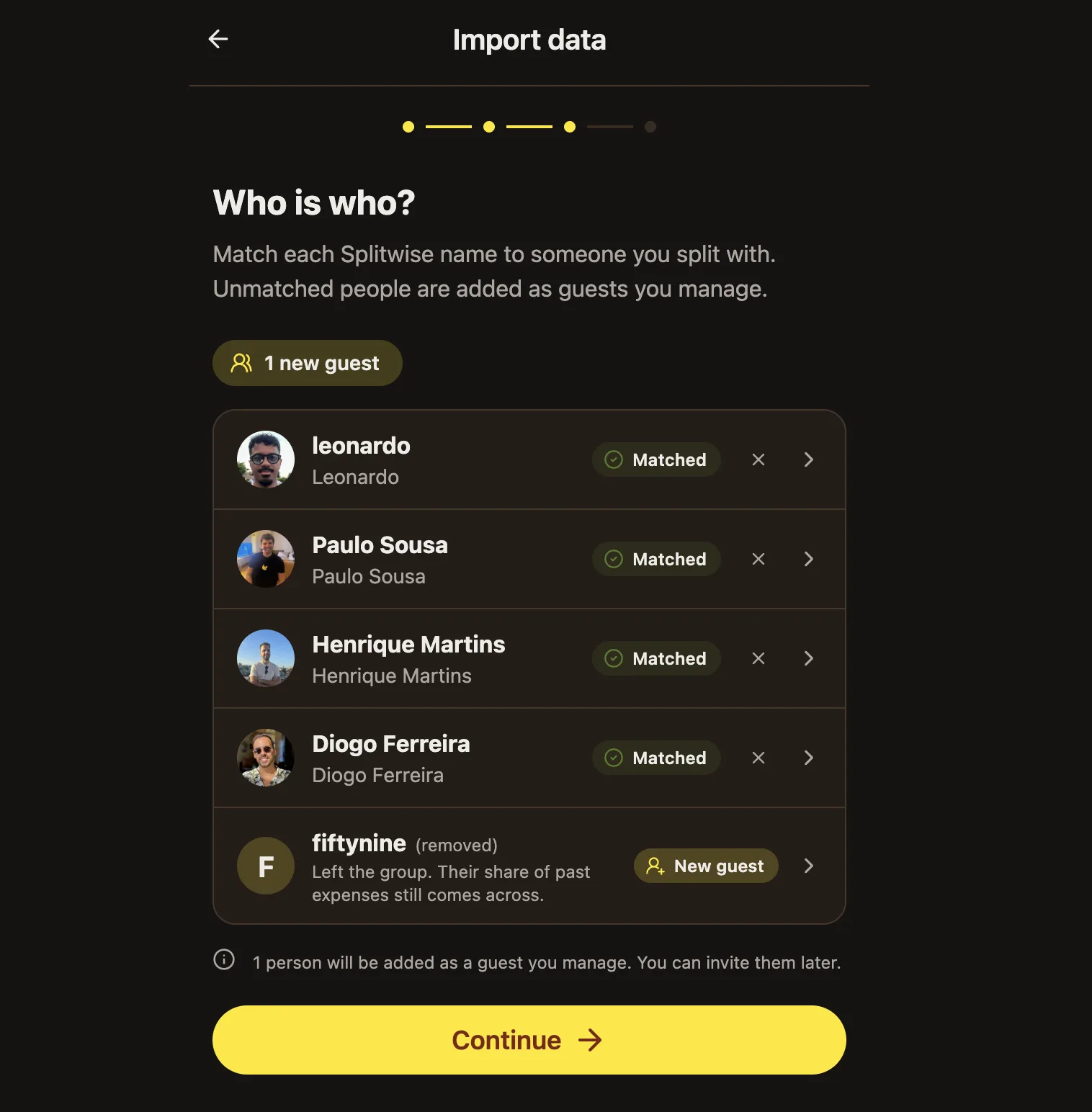
Match the people
Match each Splitwise member to the right person in BananaSplit, or create a guest for anyone who is not here yet. BananaSplit helps by filling suggestions automatically.
- Match people who already exist in your BananaSplit group.
- Create guests for anyone who has not joined yet.
- Keep the imported history attached to the right people from day one.
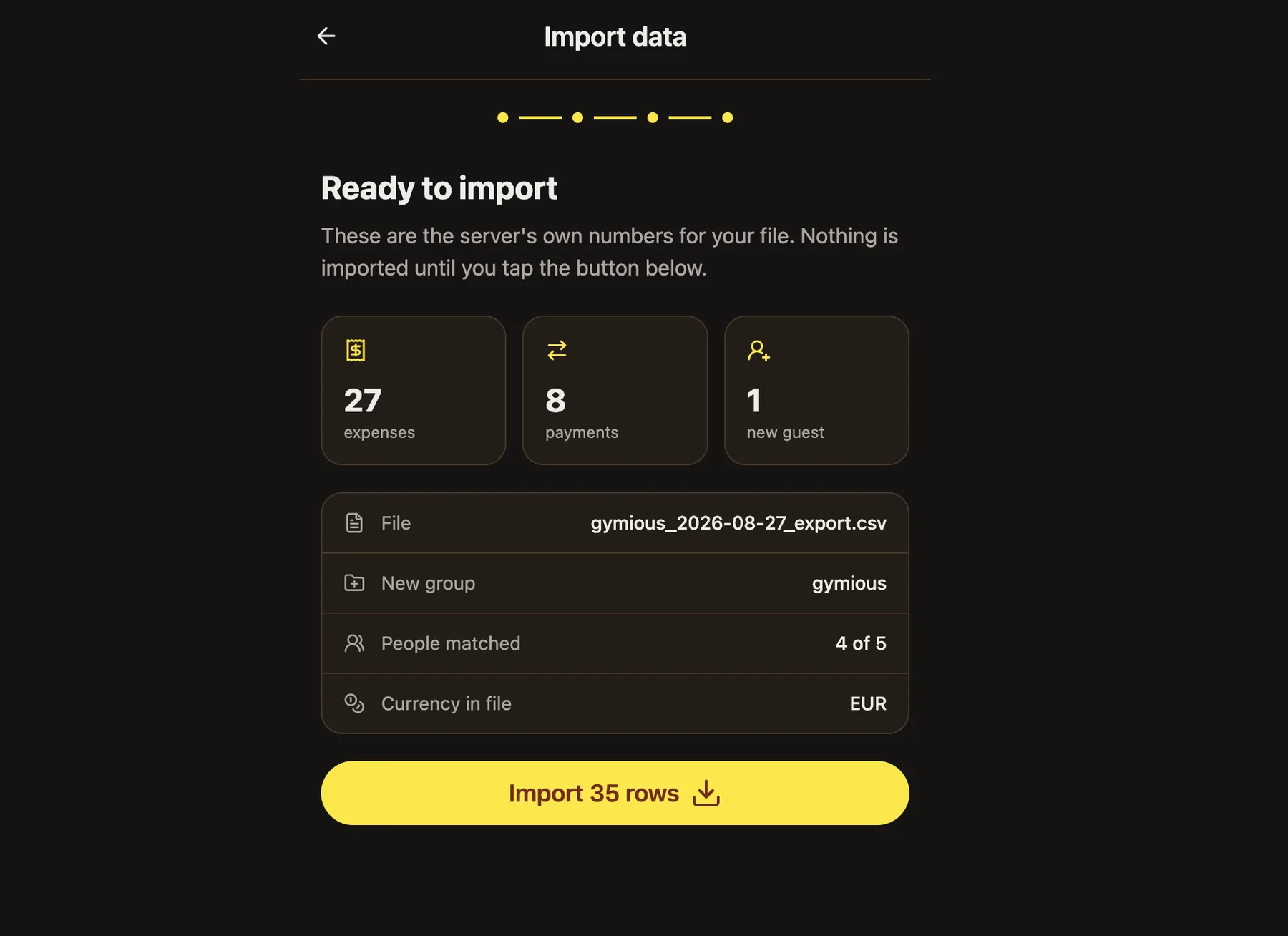
Review before importing
Before anything is added, BananaSplit shows an overview of the file, group, matched people, expenses, payments, and guests. Check it, then import the rows.
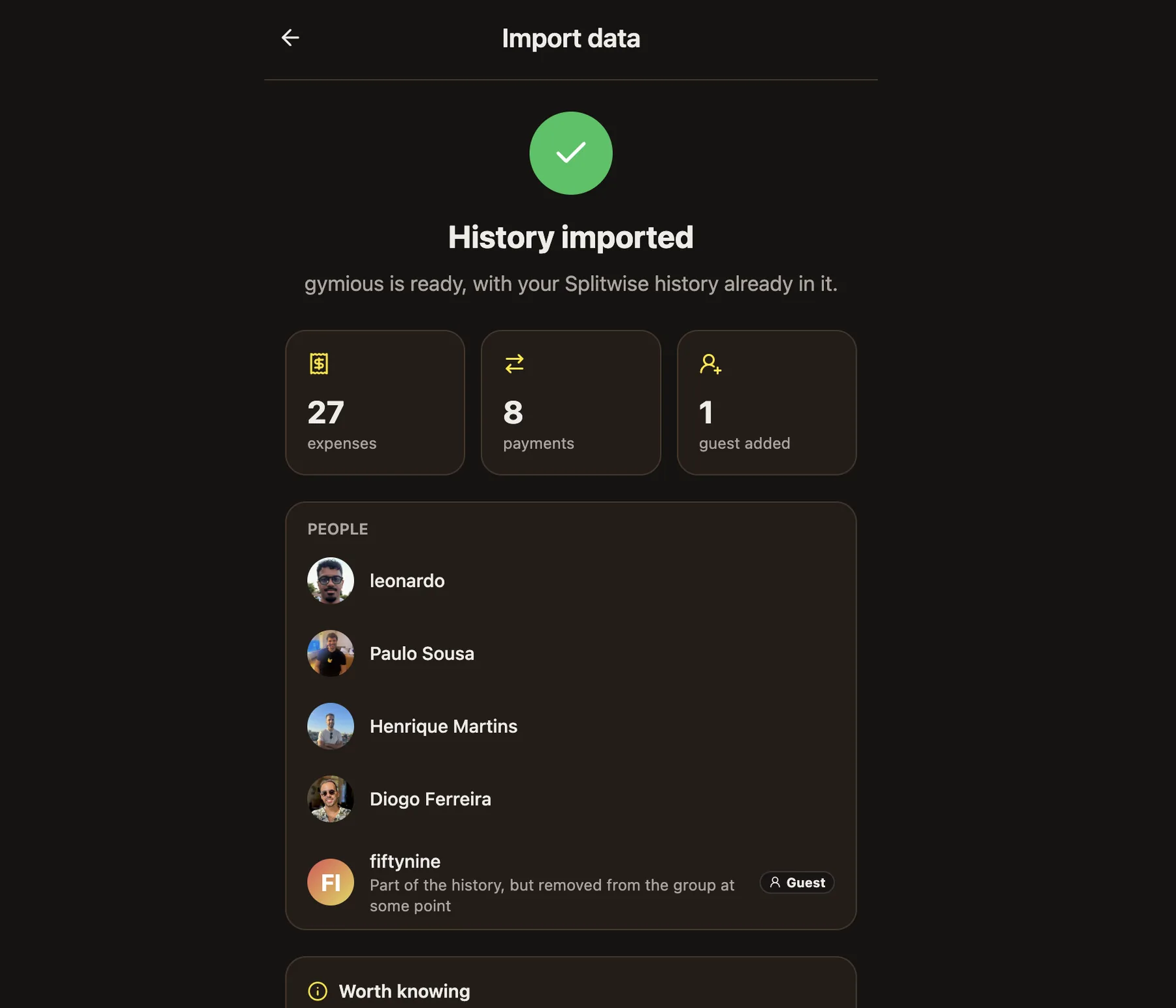
Your group is ready
After the import finishes, the group is created or updated with the Splitwise history already inside it.
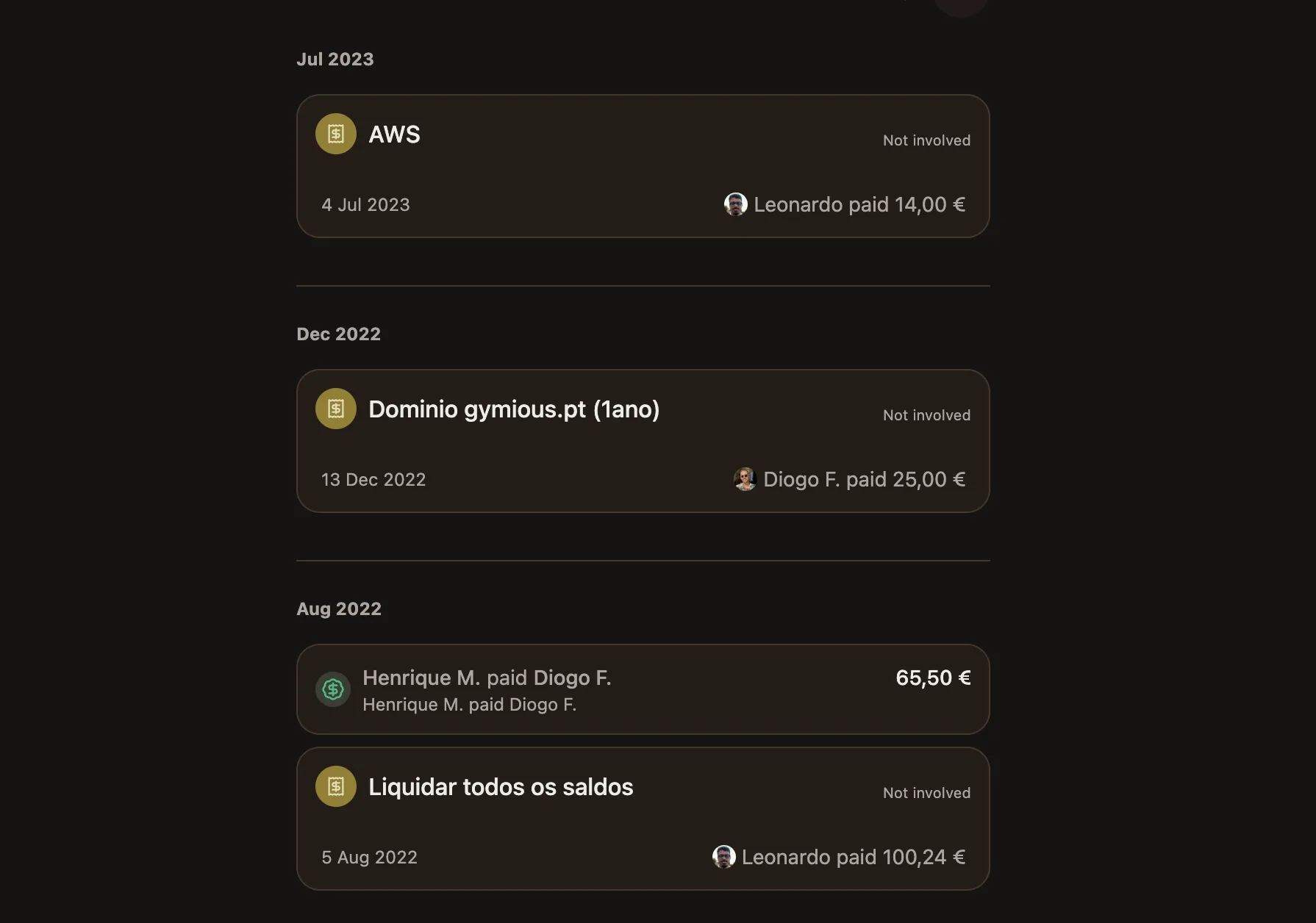
All activity comes across
Your imported expenses and payments appear in the group activity, organized by date, so the old history stays useful instead of sitting in a CSV somewhere.